
Configuring a Signal Panel
Here you can learn how to use and configure a signal panel block. Signal panels allow you to manually control signals and monitor trains and signal behaviour.
Configuring a Signal Panel:
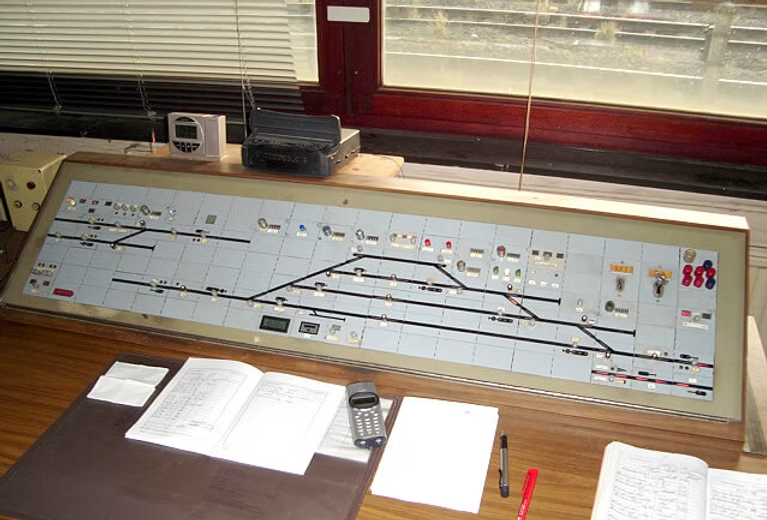
The signal panel consists of a grid of 16x24 so-called tiles. Tiles are the main component of signal panels as you can model nearly every track layout with ZnDs provided tiles.
This works and looks similar to a relay signal box.
In this tile grid you can select specific tiles by left-clicking them. A selected tile is then highlighted with a yellow box.
After you selected your tile you can then either add tracks (through the number keys 0-9), signals or text label tiles.
You can only set one kind of tile per tile slot.
Adding Signals:
|
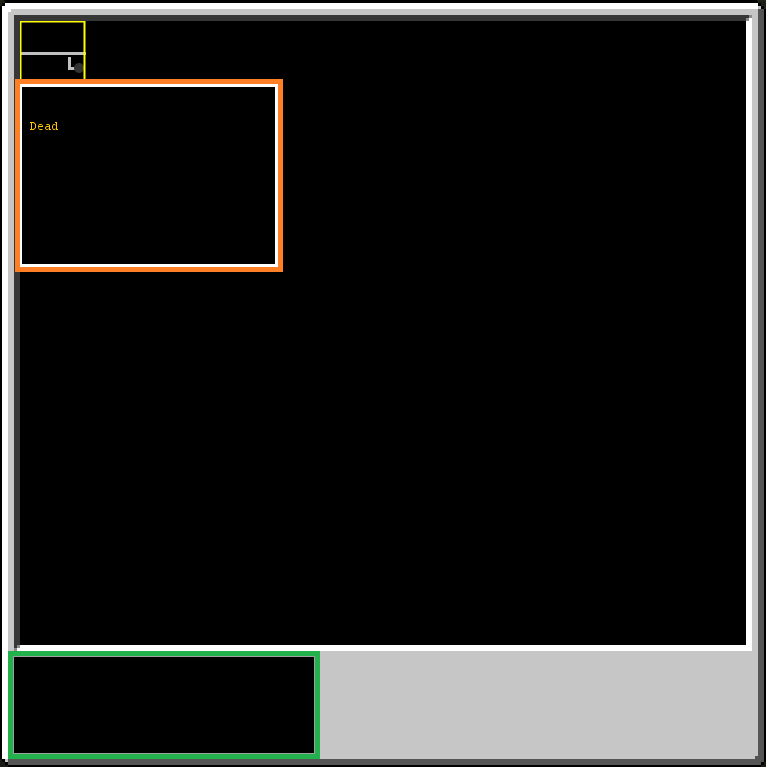
After you added your signal you then are greeted with the gui on the right.
The orange box contains information about the signal. Signals which either are not chunkloaded by an active path or not configured appear as "Dead" and have a grey lightbulb.
The green box contains the signals unique identifier. This is used to couple the signal tile in the signal box to a real signal. This unique identifier can either be found in the real signals settings or on the small panel infront of the signal. |
 |
 |
|
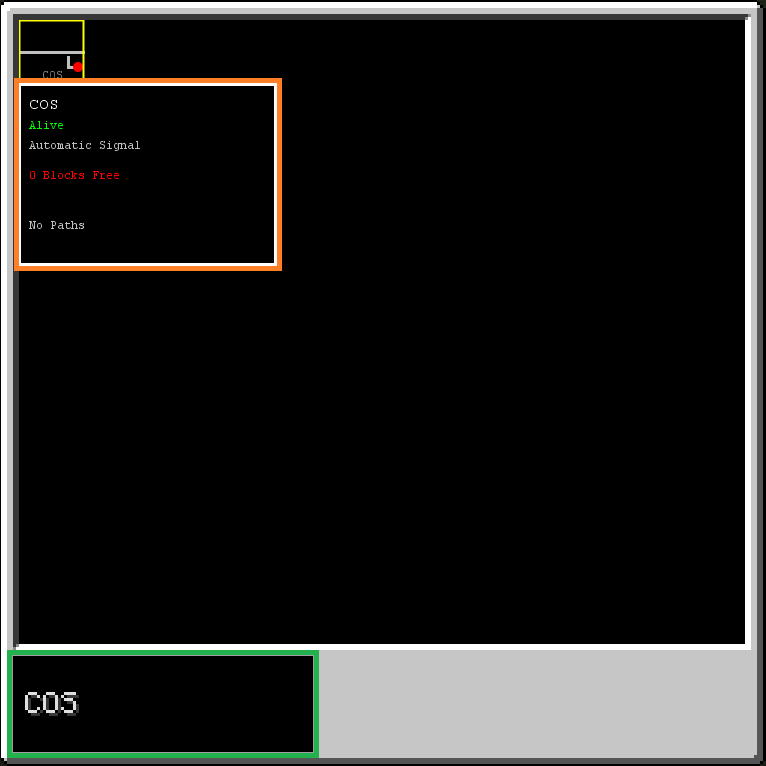
In this small example we then insert "COS" into the green box as our signal identifier. We then can see more status information in the orange box as signal "COS" is currently loaded through the player. "COS" is then marked as "Alive". The next entry then tells us whether this signal is automatic or manually operated. If "COS" contained paths we would also find the paths names where it here says "No Paths". |
 |
Adding Labels:
|
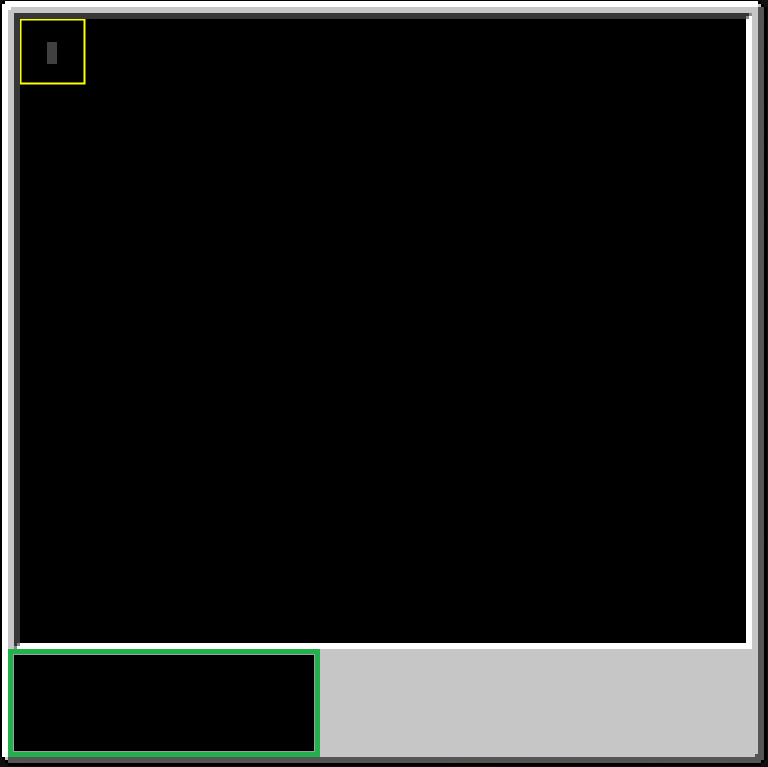
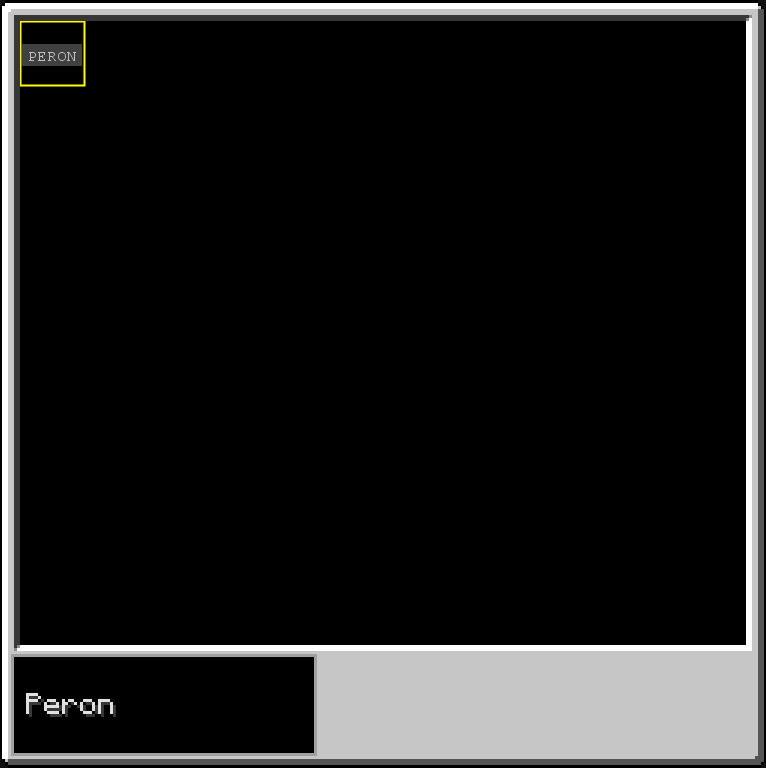
After you added your text label you then are greeted with the gui on the right. The green box here contains the text which the label needs to display. |
 |
|
If we e.g. set "Peron" as display text we can see that the grey box in our selected tile scales according to our texts length. |
 |