Placing, coupling, driving & creating Trains
- Default Key Binds (Trains)
- Cab Displays - MTMS & MTCS Display
- Driving Trains Basics
- Driving Trains Advanced
- Coupling Mechanics
- The Model Editor/Creating Custom Models
- Porting Trains to newer ZnD versions (from v0.9.X to v0.10.X)
- Getting, importing custom models and placing trains
Default Key Binds (Trains)
This page contains all default train controls. They can be changed in the mod configuration, which you can access from within Minecraft's title screen by pressing on Mods and selecting Zora no Densha in the list on the left side. Once selected, press Config and enter Cab Controls.
Default Keys:
Driving:
| Key | Effect |
|---|---|
| W | Move reverser forward |
| S | Move reverser backward |
| A | Increase throttle |
| D | Decrease throttle |
| " / Ä | Increase break force |
| { / Ü | Decrease break force |
| F | Enable/disable AFB (Cruise Control) |
| R | Increase AFB speed limit |
| V | Decrease AFB speed limit |
Train Configuration:
| Key | Effect |
|---|---|
| H | External light switch (4 Modes: Off/Shunt/Rear/Front) |
| J | High Beams toggle (needs light mode: Front) |
| K | Toggle cab lights |
| L | Toggle train lights |
| 9 | Turn MTCS screen on/off (centre screen) |
| 0 | Turn MTIS screen on/off (right screen) |
| I | Unlock/Close left Doors |
| O | Unlock/Close right Doors |
| P | Decouple cab coupler (Only with Scharfenberg coupler) |
| 7 | Raise/lower back pantographs |
| 8 | Raise/lower front pantographs |
Safety:
| Key | Effect |
|---|---|
| Q | Dead Man's Switch key |
| Enter | Emergency brake |
| Space | Horn |
| 9 | Turn MTCS screen on/ off |
| 0 | Turn MTIS screen on/ off |
Destination Displays
Some vehicles have destination boards installed. These are small screens which display the destination your train is heading to. You can set the destination which should be displayed using /setdest <Line1>, <Line2>.
Usually, <Line1> is your train number or line number with destination name, and <Line2> is either a list of via's (i.e. stations the train visits) or other information.
Cab Displays - MTMS & MTCS Display
ZnD trains cabs give the driver a whole lot of useful information. Part of this information system are the MTMS and MTCS display.
There currently are two different cabs in ZnD. One is the BR 101s and the other the FLIRT 3s cab.
You can see the standard driver display configuration below. The MTCS display is red and the MTMS display is green.
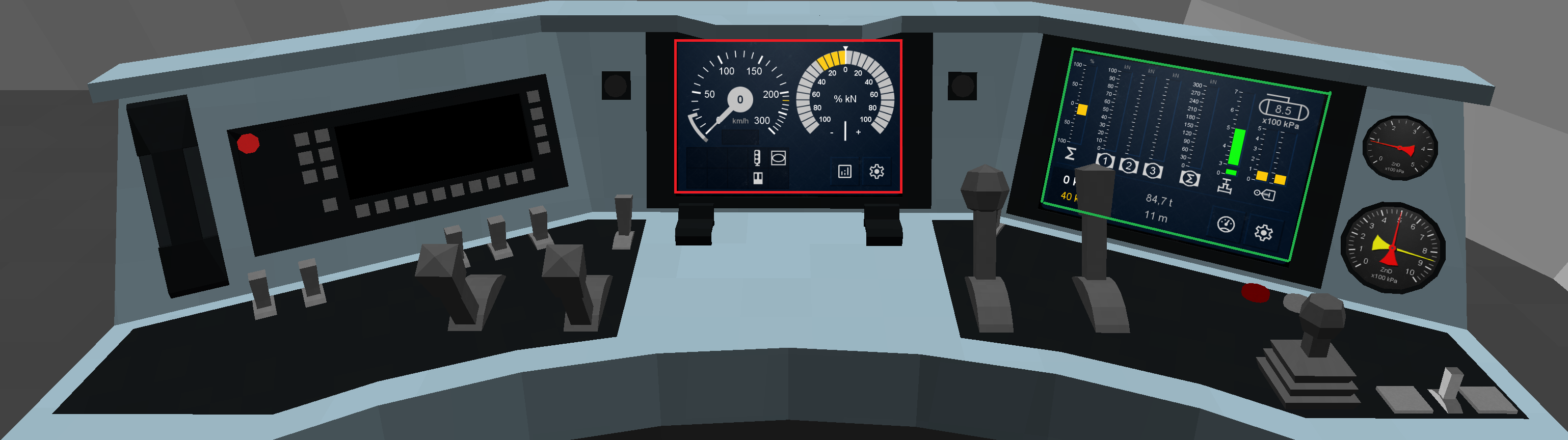
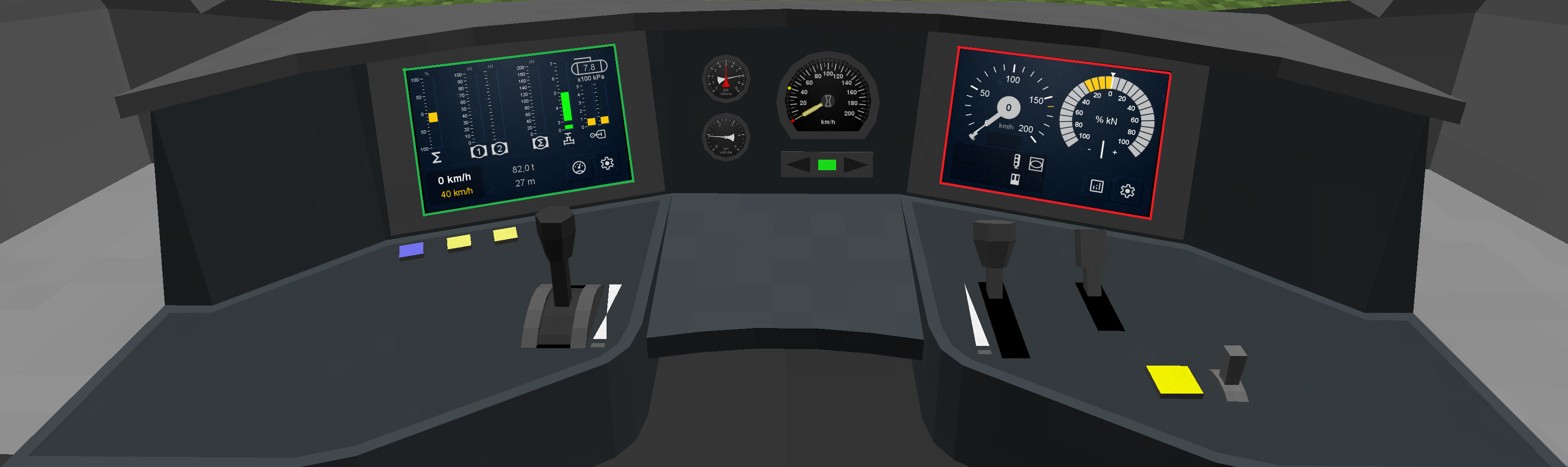
MTCS Display
MTCS is short for "Minecraft Train Control System". This is where you can view most of the immediately relevant train stats (e.g. speed, tractive effort, status bulbs). This is also where upcoming MTCS speed limits are displayed.
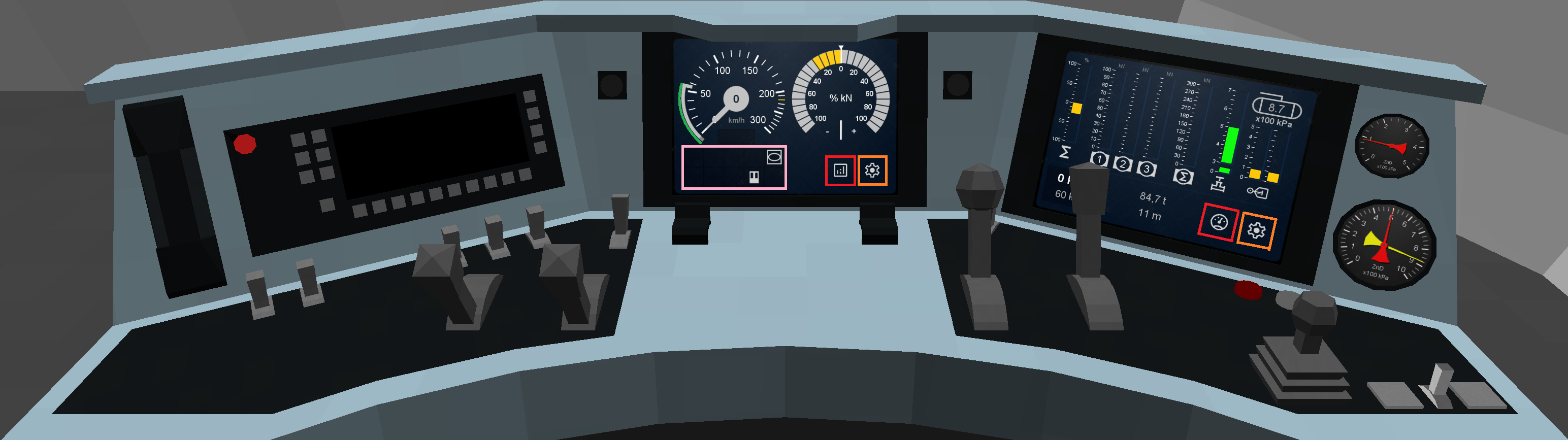
The MTCS Display consists of 3 main segments and two control buttons.
| Location/Colour | Name | Function |
| Top left dial | Speedometer | Displays the current train speed together with the currently valid MTCS speed limit. |
| Top right dial | Tractive effort | Displays the trains currently applied tractive effort or brake force. |
| Lower left/pink | Status bulbs | Displays current status messages for the train driver. This is where you can see e.g. "Sifa" or the "doors status" (open/closed). |
| Lower right/red | Switch MTMS/MTCS |
This changes the selected displays role. MTCS display becomes a MTMS display and vice versa. |
| Lower right/orange | Settings | This opens the train cabs settings. |
The settings page is home to the train cabs settings. This is where you can enable autodrive or make doors open/close automatically.
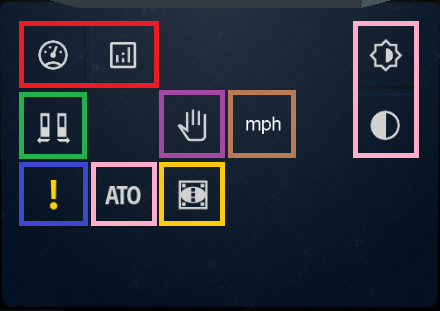
| Location/Colour | Function |
| Red | Return to MTMS/MTCS display view. |
| Green | Automatically open/close doors. |
| Blue | En-/Disable all safety systems. |
| ATO |
En-/Disable autodrive. |
| Yellow |
En-/Disable "limited supervision" mode (designed to emulate the appearance and function of ETCS's real Limited Supervision mode). Braking curves are not enforced and the current speed limit is not displayed on the screen. |
| Purple |
En-/Disable automatic brake application upon stopping. |
| Top right |
Customize display appearance (brightness - top, light/dark-mode - bottom) |
MTMS Display
MTMS is short for "Minecraft Train Management System". This is where you can view extended stats about your train.
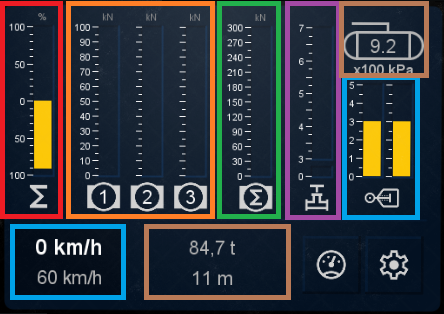
| Location/Colour | Function |
| Red | Total train power/brake power. |
| Orange | Individual engine/bogie power/tractive effort. |
| Green | Total engine/bogie power/tractive effort. |
| Purple | Brake pipe pressure (pneumatic brakes are released when this is 500 kPa). |
| Light Blue/Right |
Brake cylinder pressure (brakes are released when this is 0 kPa). |
| Brown/Right |
Air compressor/main reservoir pressure. |
| Light Blue/Left |
Top: Current train speed; Bottom: Currently active MTCS speed limit. |
| Brown/Center |
Train stats (total length and total weight). |
Driving Trains Basics
Cab overview
The Zora no Densha cab is really close to a real one. While it seems complicated, it really is simple to drive a train.
Basic Controls
You'll have to remember some basics controls which are by default:
-
W and S for the reverser (by default, the reverser is at X (locked)).
If you press W once you'll go into Backward mode (down arrow selected), one more to be in Neutral mode (N selected) and once again to go to Forward mode (up arrrow selected).
W will make you go up in the list while S will make you go down. The arrows represent the direction your train will go to. Neutral mode has no direction. -
A and D for the throttle (by default at 0 (brake released but no power)).
Pressing A will give power to your train or release your brakes. The more you press, the more power you allocate and the more acceleration your train will gain.
At the contrary, D will give less power or apply brakes. -
Q is the dead man's switch key. When you see the '!' logo on your screen and/or hear a beeping sound, you'll have to press this key.
Otherwise your train will think you're dead or AFK and will apply emergency brakes. -
Enter is the emergency brake key. When pressed, your train will decelerate quickly to a full stop.
To remove emergency brakes, set the reverser to neutral and the throttle to zero. Then press the emergency brake again until your throttle display stops blinking red. -
9 is for the MTCS screen. It turns the screen on and off.
The screen must be on if you want to drive your train. -
Space is for the horn. If there are passive animals in front of your train when driving, sounding the horn will alert them to your presence and make them move out of the way (unless they are too stupid to find a safe place, in that case they'll just get squashed).
Please note that above buttons may change depending on what you assigned them to in your configuration.
Driving Trains Advanced
If you're here, that means you've completed all the previous tutorials - well done! If that's not the case, we highly recommend you to check them.
Advanced Controls
Here are some advanced controls for you to completely enjoy the Zora no Densha driving experience:
Lighting
K toggles driving compartment light.
When enabled, this will light up the area inside the compartment and the desk/chair.
H changes the train's head light.
You switch through a list of four states; Off - Shunt - Rear - Front.
J toggles light beams for the head light.
The light beams only appear when the head lights are set to "Front".
Passenger
I (un-)locks the doors on the left side of your train.
Passengers will then be able to interact with the doors to open them and to hop in. To close the doors and lock them, press I again (it'll take some time to close with a beeping sound).
O (un-)locks the doors on the right, similar to above.
Pro-tip: When doors are unlocked, an icon will appear on the MTCS display and the door state will change on the MTIS display. The two buttons at the bottom right corner of your panel will also light up depending on which doors are unlocked.
You can use in the cab the command : /setdest <Line1>, <Line2> to set which text your train's destination boards display.
Some more info can be found here.
AFB/Cruise Control
Automatische Fahr- und Bremssteuerung, translates to automatic driving and braking control - or simply Cruise Control.
This system is used to assign a maximum speed for the train.
When enabled, the train will not go higher than the assigned speed thanks to an automatic control of the brakes.
Please note that this mode does not automatically apply throttle - you will need to set the throttle to a level which will allow the train to accelerate.
F is used to toggle AFB. It'll show a little yellow diamond on your speedometer at the speed limit you've assigned (default 40 km/h).
The speed limit assigned is also shown on the MTIS display.
R increases the speed limit by 5 km/h.
V decreases the speed limit by 5 km/h.
Others
7 and 8 control pantographs by either extending or retracting the back or front pantographs, respectively.
In future versions, pantographs will be required to draw power from overhead lines. Currently, they serve only cosmetic purposes.
P decouples the vehicle in front of you. This only works with Scharfenberg couplings, though.
Coupling Mechanics
Zora no Densha currently comes with 3 different couplers, all of which have their own unique behaviour and functionality.
Screw and Chain coupler
The most primitive type of coupling, a screw and a chain. These are controlled manually.
To couple two vehicles equipped with these couplers, put them as close as possible then Shift + RMB on one of the couplers to link them.
You'll hear a sound and visually see them attached.
To decouple, Shift + RMB on any of the two couplers. You'll hear a sound and visually see them detached.
Janney coupler
A more advanced semi-automatic coupler usually seen on freight trains.
To couple two vehicles equipped with these couplers, bump them into each other. They'll couple automatically (a sound will be played but can't be heard if too far). You'll visually see a change in the coupler model, with the pin inside.
Pro-Tip: If you have a long train to couple use the Train length number on the MTIS display to check if a cart has been coupled.
To decouple, Shift + RMB on either coupler. You'll hear a sound and see the pin out.
Scharfenberg coupler
A modern automatic coupler mainly used on passenger EMU/DMUs.
To couple two vehicles equipped with these couplers, bump them into each other. They'll couple automatically. You'll visually see a change in the coupler model with the electric boxes that connect, and a sound will be played.
To decouple, you have two options. If you want to decouple the cart attached to the cab, press the coupler key (K by default). For the others, a Shift + RMB on the coupler will be necessary.
The Model Editor/Creating Custom Models
Zora no Densha adds the ability to assemble and configure a rail vehicle from a set of installed parts. Assembly of rail vehicles happens in the Engineer's Table.
Tipp: Please keep in mind that ZnD currently allows a max. amount of 500 individual parts per preset.
Opening the Model Editor
Place an Engineer's Table and right-click it to open its GUI. In the GUI, select the Trains tab by clicking onto the center icon on the top right (the icon that shows the blue locomotive and the white passenger car). The GUI will change appearance.
GUI Elements
| Position | Element | Short Description |
|---|---|---|
| Top-left corner | Model Editor Window | View the vehicle you're editing, interact with it inside the window using your mouse/ touchpad. |
| Center-right | Vehicle parts and saved Presets | Add and (de-)select vehicle parts or load and export Preset files. Scroll through all pages by clicking the + and - buttons above. |
| Center-left, below Model Editor Window |
Input slots |
Input slots for Black Dye and Paper. These slots have to be filled in order for a Blueprint to be printed. |
|
Bottom-left (if selection isn't empty) |
Selection and Pivot data |
View and change the average data of the selection's elements, such as average offset and rotation. Set the Pivot's position. |
|
Bottom-right (if selection isn't empty) |
Selection index data |
View and change an individual part's data, such as offset, scale, rotation or color. Some parts might have additional fields that can be changed. Scroll through the selection's indices by clicking the + and - right next to the index number. |
Keyboard Shortcuts
Please note that following keyboard shortcuts assume that you use default settings; the respective key might differ depending on your settings.
| Key/Shortcut | Function | Short Description |
|---|---|---|
| CTRL+C | COPY selection |
Copy the selection into the clipboard. If the parts limit is reached this will not be possible anymore. |
| CTRL+V | PASTE selection |
Paste the clipboard. If the parts limit is reached this will not be possible anymore. |
| CTRL+Z | UNDO action | Undo your previous action. |
| G | MOVE selection | Grab and move the selection using your mouse. While grabbing, press X, Y or Z to move along a specific axis. |
| R | ROTATE selection | Rotate the selection along the view axis using your mouse. While rotating, press X, Y or Z to rotate about a specific axis. Change the Transformation Mode to rotate about local origin, selection center, or pivot point. |
| S | SCALE selection | Scale the selection in all dimensions using your mouse. While scaling, press X, Y or Z to scale along a specific axis. |
| X | DELETE selection | Remove the selection from the Model Editor. |
| 5 | Toggle orthographic/ perspective view |
Press to switch between orthographic and perspective view mode. |
|
8 |
Set camera angle - View along +X |
View the model's rear. |
| 2 |
Set camera angle - View along -X |
View the model's front. |
| 3 |
Set camera angle - View along +Y |
View the model's bottom. |
| 9 |
Set camera angle |
View the model's top. |
| 6 |
Set camera angle |
View the model's left side. |
| 4 |
Set camera angle - View along -Z |
View the model's right side. |
Model Editor Options (Drag down menu)
Right-click in Model Editor Window to open.
| Option | Short Description |
| Clear model | Remove all vehicle parts. Leaves the entire Model Editor window blank. |
| Save as Preset | Save the model as Preset file. |
| Toggle floor grid | Click to (de-)activate the floor grid displayed in the Model Editor window. |
| Transformation mode | Click to switch transformation mode (applies to rotation). Switches between individual origins, selection center, and pivot point. |
|
Orthographic/ Perspective view |
Click to toggle orthographic/ perspective view. Will change the camera's projection mode. |
| Toggle pivot | Toggles the pivot's size. |
| View in world | Click to toggle rendering in a small scene. Disables pivot and floor grid. |
| Set initial mass | Click to set a value to either increase your trains mass (positive value) or reduce its mass (negative value) |
Vehicle Part Options (Drag down menu)
Right-click on any vehicle part icon on the center-right of the Model Editor to open.
| Option | Short Description |
| Add to model | Adds the selected part to the model's center with default settings. |
| Deselect all | Removes all vehicle parts of the selected type from the selection. |
| Select all | Clears the selection, then adds all vehicle parts of the selected type to the selection. |
Preset Options (Drag down menu)
Right-click on any Preset icon on the center-right of the Model Editor to open.
| Option | Short Description |
| Load Preset |
Load the selected Preset. If there is another model in the Model Editor, it will ask to save. Clicking "No" will directly load the model without saving, clicking "Yes" will open the Preset save prompt. Press ESCAPE on your keyboard to cancel. |
| Prints the selected Preset as Blueprint. Requires the input slots to be filled. | |
|
Export as file (If not exported) |
Creates a Preset file in your Add-Ons directory. Use that file to share your Preset. |
|
Remove Preset (If not exported) |
Deletes the Preset forever. This cannot be undone! |
|
Remove from Add-Ons (If exported) |
Deletes the Preset from your Add-Ons directory forever. This cannot be undone! |
|
Move to begin (If not exported) |
Moves the Preset to the first index of Presets. The first index will be rendered on top of the Engineer's Table. |
Assembling and editing vehicles
In the Model Editor, either load a Preset and edit it or start off with a clear model. Add Vehicle Parts and customise them to your taste. Once you are finished, save your glorious work as a Preset.
Printing vehicles
Right-click a Preset in the Engineer's Table GUI to print it. Remember to fill both input slots with Black Dye and Paper.
Blueprints have infinite uses. Right-click with a Blueprint in the center of a Maintenance Track section that is at least as long as the vehicle you're going to create. If the vehicle doesn't spawn, the track might be too short, or there might be blocks or other things obstructing the vehicle.
If the vehicle was successfully spawned, a transparent "ghost" model will be shown. (Please note: This will spawn the vehicle instantly, if instant-spawning in creative mode is enabled.) To finish the vehicle, apply Vehicle Part items to all ghost parts, until all parts appear. If you decide not to finish a vehicle, simply whack it and it'll drop all applied parts. Once you are sure that you've applied all parts, hit the vehicle to drop it as item. If you haven't forgotten to apply any parts, the vehicle will properly drop as item, if the respective setting was enabled in your mod's configuration. You can use the finished vehicle immediately.
Exporting and importing Preset files
Export a Preset by right-clicking it in the Model Editor and selecting "Export as file". A file will automatically be created inside of your Zora no Densha/ directory. You can copy this file and share it with whomever you like.
Import a Preset by dropping a Preset file in your Zora no Densha/Add-Ons/ directory. After you restarted your game, the new file will be shown in the Model Editor.
Porting Trains to newer ZnD versions (from v0.9.X to v0.10.X)
The new ZnD-Version (v0.10.X) sadly has the side effect that most locomotives/EMUs/DMUs made in v0.9.X are not capable of driving on their own, when placed on a track. To better understand this guide, you can read this article about the model editor.
To make them drive again, you’ll have to edit the model from the old version and make a few modifications:
- Add Compressor Part:
v0.10 introduces a new (air) breaking system because of which ever locomotive hast to have a compressor. Just add it and move it to an offset position inside the trains body. - Connect bogies with the engine:
Click on every bogie and change the value of the setting “Has Engine?” from false to true. - Correct Tractive Effort:
While in the bogies, change the value of the setting “Tractive Effort” to the desired (higher) value.
Tractive effort must NOT be 0! - (Optional) Turn off Hitboxes:
If the train still won’t drive you may have to turn off some hitboxes of parts near the track/ground. To turn off a Hitbox click on the part and look for the setting “hitbox?”. Then change its value from true to false.
Porting models from previous snapshots to snapshot 100:
As there have been changes to the way ZnD handles tractive effort (as of snapshot 100, tractive effort is calculated automatically), it may be that models made using previous snapshots could behave unexpectedly (f.ex. failing to accelerate in an adequate timely manner).
This is most likely due to wrongly configured vehicle mass. You need to change this to the real world value (in metric tonnes).
- Open the vehicle/wagon in the editor
- Change the models „initial mass“ attribute:
To change total vehicle weight to match the real value, insert a value calculated as follows: -
Formula: initial mass = <real_mass_value> - <current_model_mass>
Don‘t forget to save your work after you finished editing the vehicle!
If you followed this guide completely, your train should drive normally again.
Getting, importing custom models and placing trains
Zora no Densha adds a custom 3D editor with a large number of parts to create/customize your own trains. You can also print directly premade presets provided by the mod.
Disclaimer: The Model Editor will be tackled in another advanced tutorial
Pro-Tip: Train presets can be found in the Zora no Densha preset creative tab.
Custom models need to be placed inside the /.minecraft/mods/Zora no Densha/AddOns folder in order to be recognized by the game. Newly inserted custom models will appear in the Train tab of the old Editor/Fullscreen Editor after restarting the game
Print a train blueprint
Open your engineer's table and head to the train tab. Here you can see a bunch of presets as well as some train parts.
We'll print a BR 101 in this tutorial, Zora no Densha's iconic train.
Deprecated with the new Fullscreen Editor: Put a piece of paper and an ink sack into the corresponding slots then right click on the BR 101 and select "print". This will print a BR 101 blueprint.
Crafting a train
Now that you have your blueprint, you'll need some maintenance tracks to place it.
Pro-tip: When in creative mode, maintenance tracks are not required to spawn blueprints.
If you can't place the blueprint, you may need to add more Maintenance tracks, especially for longer trains like the Stadler FLIRT 3.
Now that your blueprint is placed, you can see some blue boxes have appeared. These represent all the individual parts which must be added to the train to complete it. As parts are added to the train, you will see the parts appearing in place of the blue boxes.
You can shift right click the placed blueprint to check what parts need to be placed.
Now, craft all the parts needed and right click with them on the blueprint, it will place them. Once all the parts are in, the train is finished and ready to go!
Moving the finished train
If you have the config option "VERIF Do Train Drops" (enabled by default), you can break your train and retrieve it as an object that you can place on any other tracks.
If you don't have this config activated, breaking the train will destroy it! You have to drive it now (if it's a locomotive) or shunt it.