Autodrive & Improving Performance
Here you can learn how to use and manage autodriving trains.
Using/Configuring Autodrive
Before reading this article, we recommend reading the Paths & Signals tutorial.
Preparations:
- Configure a path on one of your signals (keep in mind that you need atleast 2 consecutive signals - ideally a "signal block" - in order for this tutorial to work). Remember the name of this path.
- Place a locomotive infront of the signal with the configured path
- Enter the locomotive and set it up to go forward (but don't accelerate!)
- Enter the chat and type the following command:
|
Command: |
Function: |
|
/setdest <pathname> |
Makes the train follow a specific user-preconfigured signal path. <pathname> must be replaced by your paths name! |
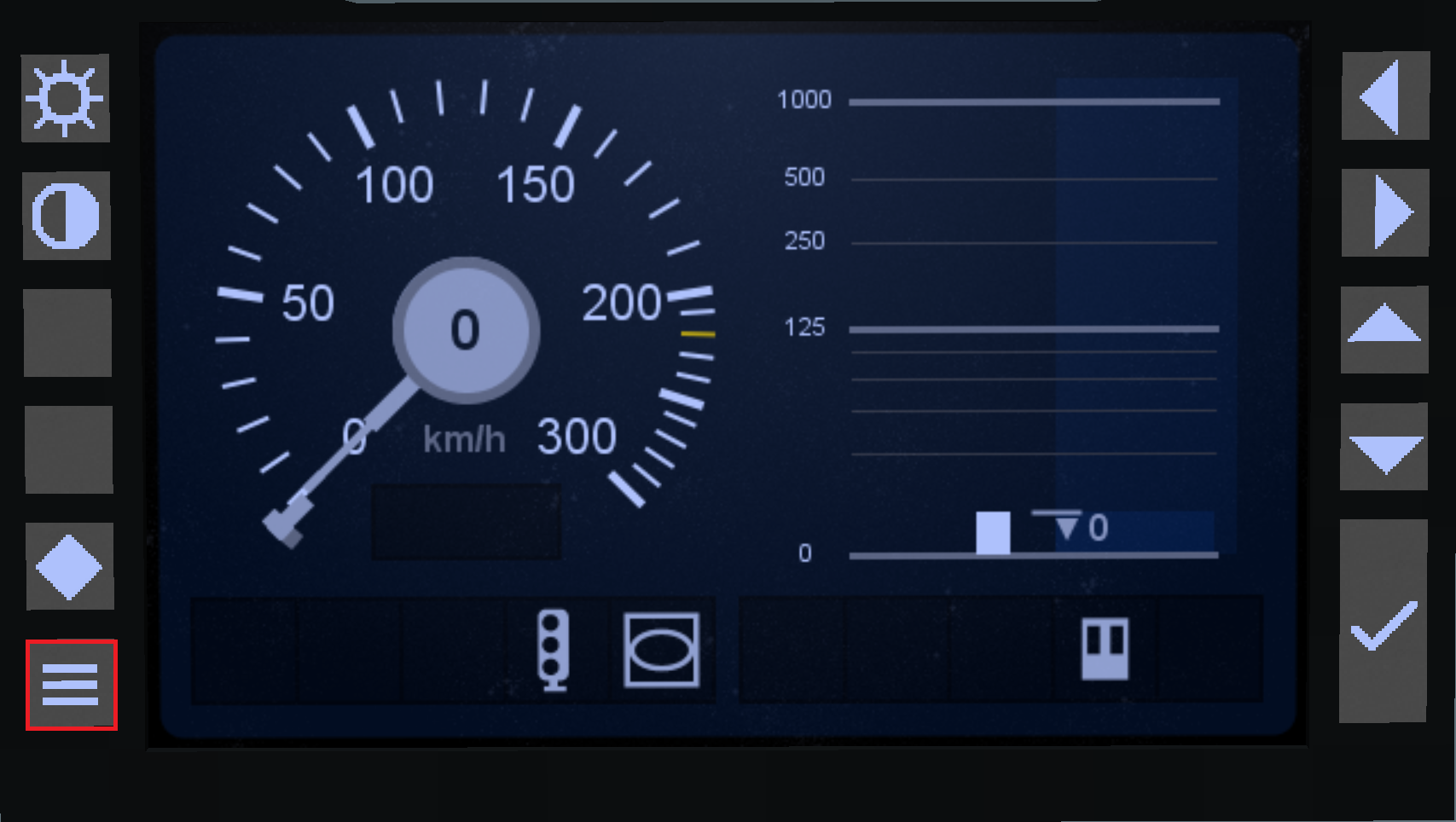
The trains main display (by default the center display) should now start displaying upcoming/current speed limits and/or upcoming track events (stops, signals, etc.).
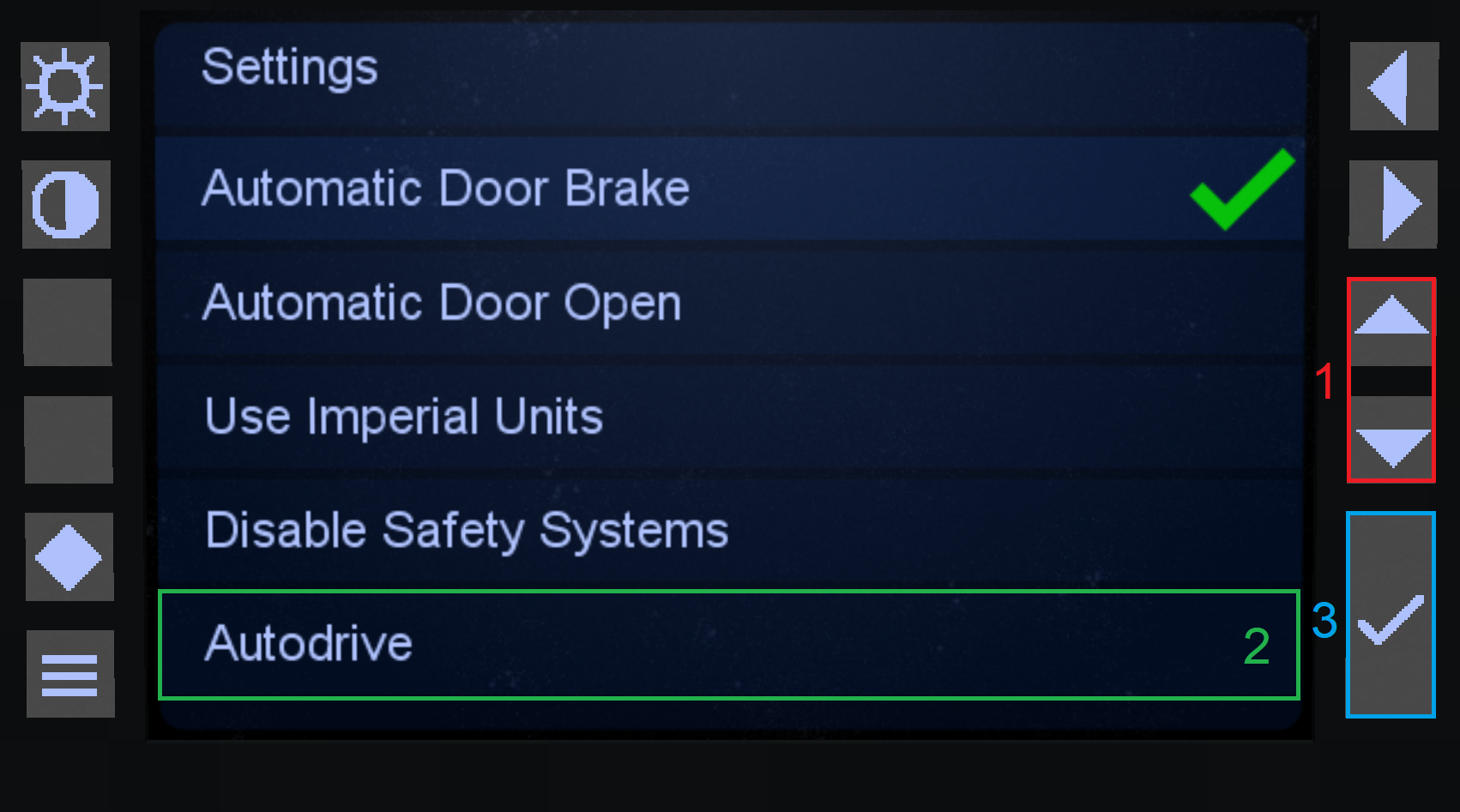
Activating Autodrive:
|
|
There should now be a green checkmark behind "Autodrive" signalling that it is now active. The train should now start moving on its own until it cannot follow any more paths. |
|
You can easily spot trains which have autodrive active through the villager in their cabs.
Improving Performance
As autodrive trains are constantly loading chunks along their way it is recommended to get rid of these as these increasingly hog server performance.
Getting rid of autodrive chunks:
Whenever server performance is starting to take a hit, you can run this command, to discard any unused loaded chunks.
| Command: | Function: |
| /purgetrainchunks | Deletes any unused autodrive chunks. |